Your Mac, connected to AI

A menubar app that gives Claude, ChatGPT, and other AI tools direct access to your Mail, Calendars, Reminders, Contacts, and Notes — all running locally on your Mac.

Download for macOS See Features

Everything your AI needs

70+ MCP tools across five macOS services.

Mail

Search, read, send, reply, draft, move, delete, flag — with markdown-to-HTML, email threading, and SPF/DKIM/DMARC authentication. Gmail OAuth and standard IMAP/SMTP.

Calendars

List, search, create, update, and delete events across all your calendar providers. Supports recurrence rules and alarms via EventKit.

Reminders

Full CRUD for reminders and lists — create with due dates, recurrence, and alarms. Mark complete, batch delete, and more.

Contacts

Search, create, update, and organize contacts and groups across iCloud, Google, and other providers via Contacts.framework.

Notes

List, search, create, update, move, and delete notes and folders in Apple Notes. Supports plain text and HTML content.

Notifications

AI tools can notify you about actions taken — delivered as native macOS banners with a full in-app notification history.

See it in action

A native macOS experience, right from your menubar.
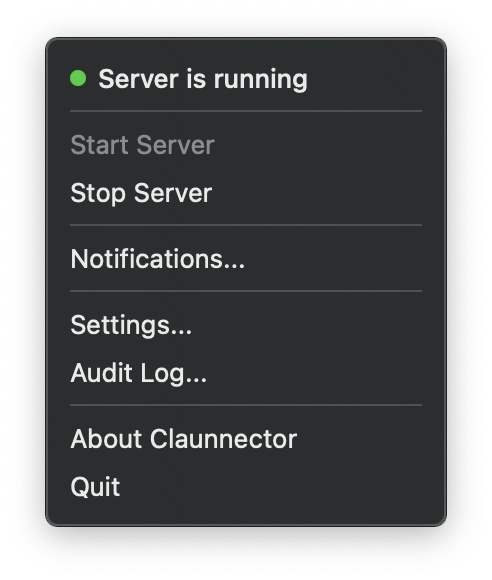
Menubar server status

Menubar Control

Start and stop the server, access settings, review notifications, and open the audit log — all from a single menubar icon. Always running, never in the way.
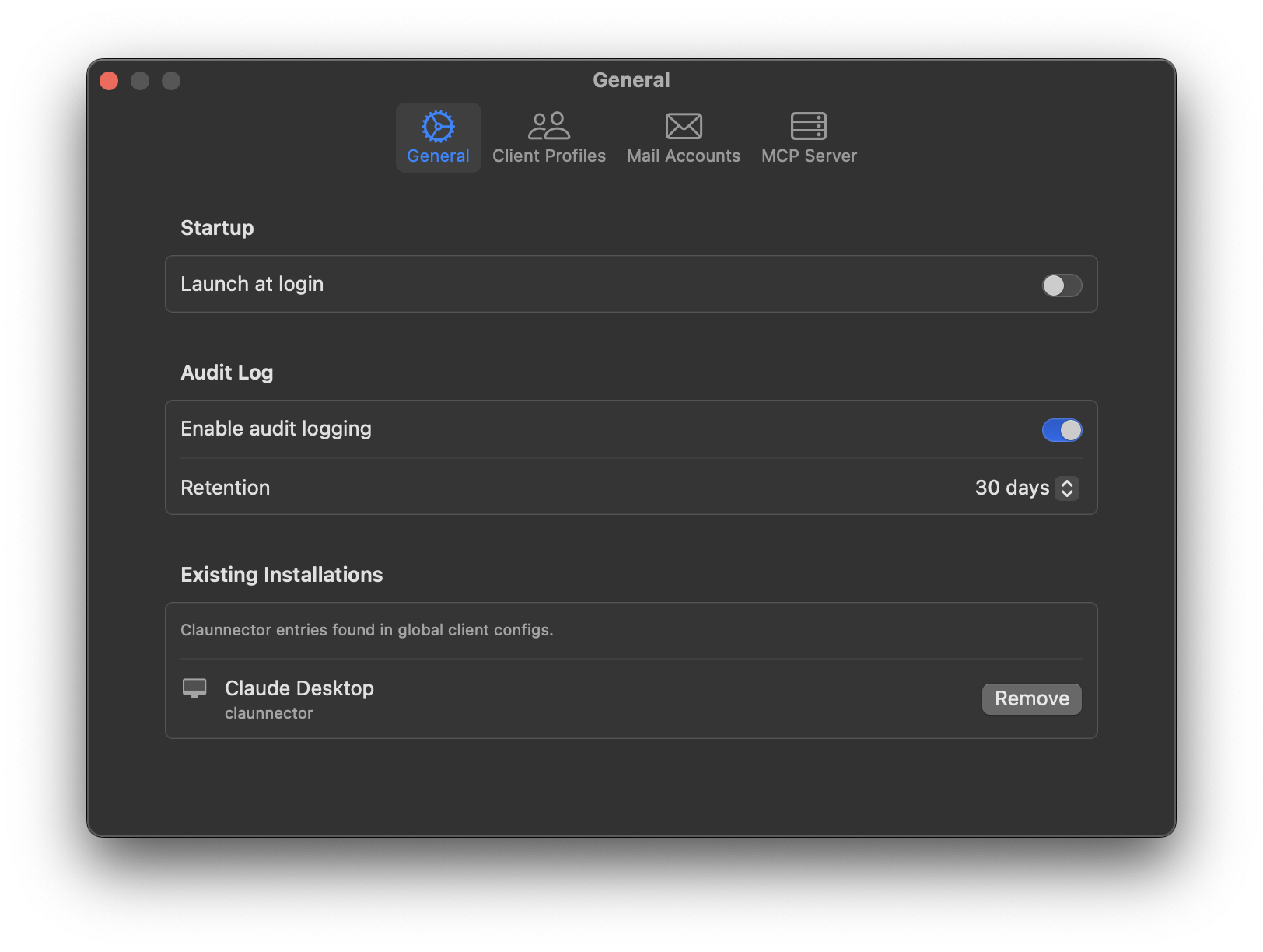
General settings

General Settings

Launch at login so Claunnector is always ready. Configure audit log retention, and manage 1-click installations for Claude Desktop, Claude Code, and Claude Cowork — no manual config files needed.
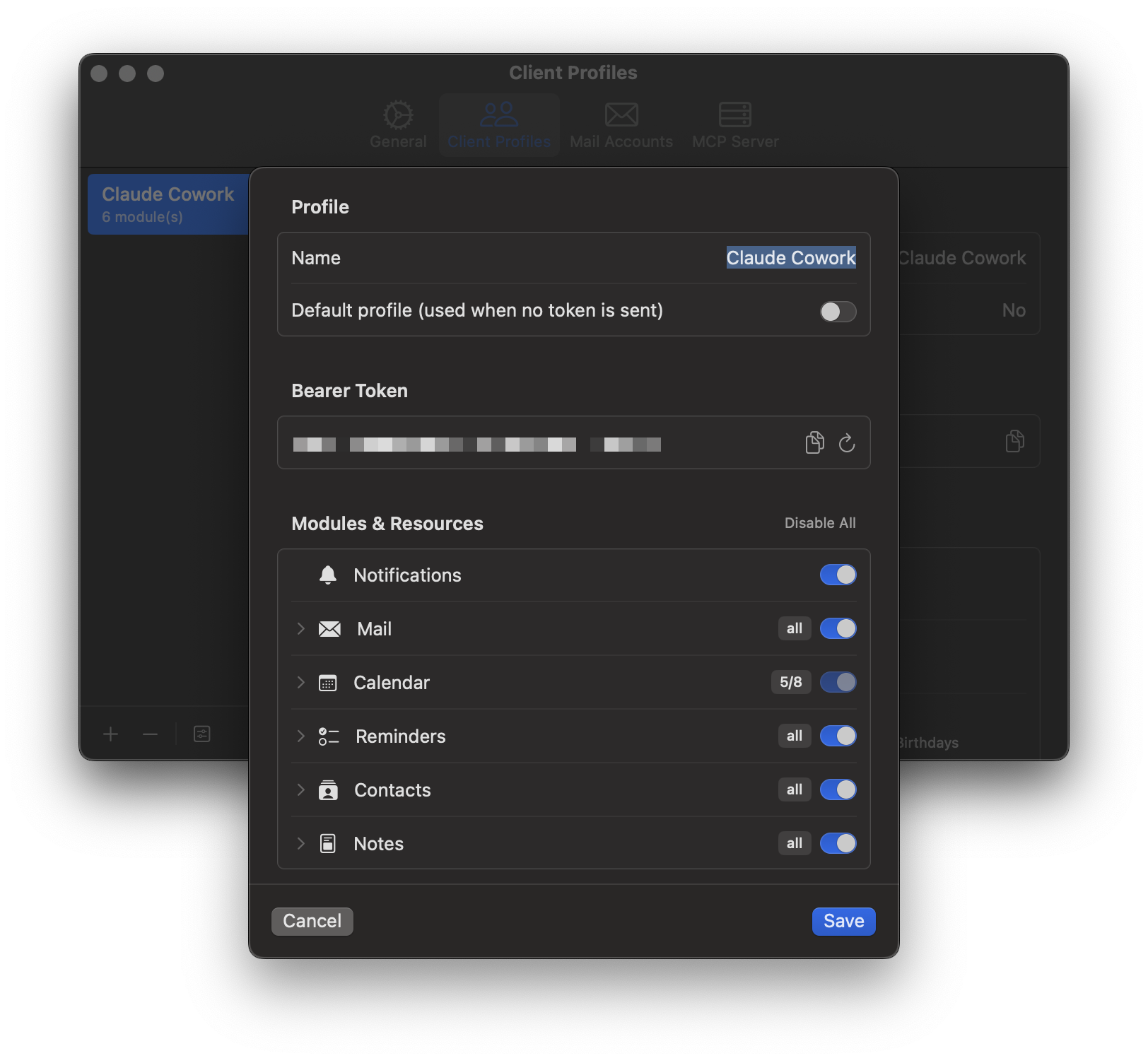
Client Profiles settings

Client Profiles

Create a profile for each AI client and control exactly which modules and resources it can access — down to individual calendars, mail accounts, and more.
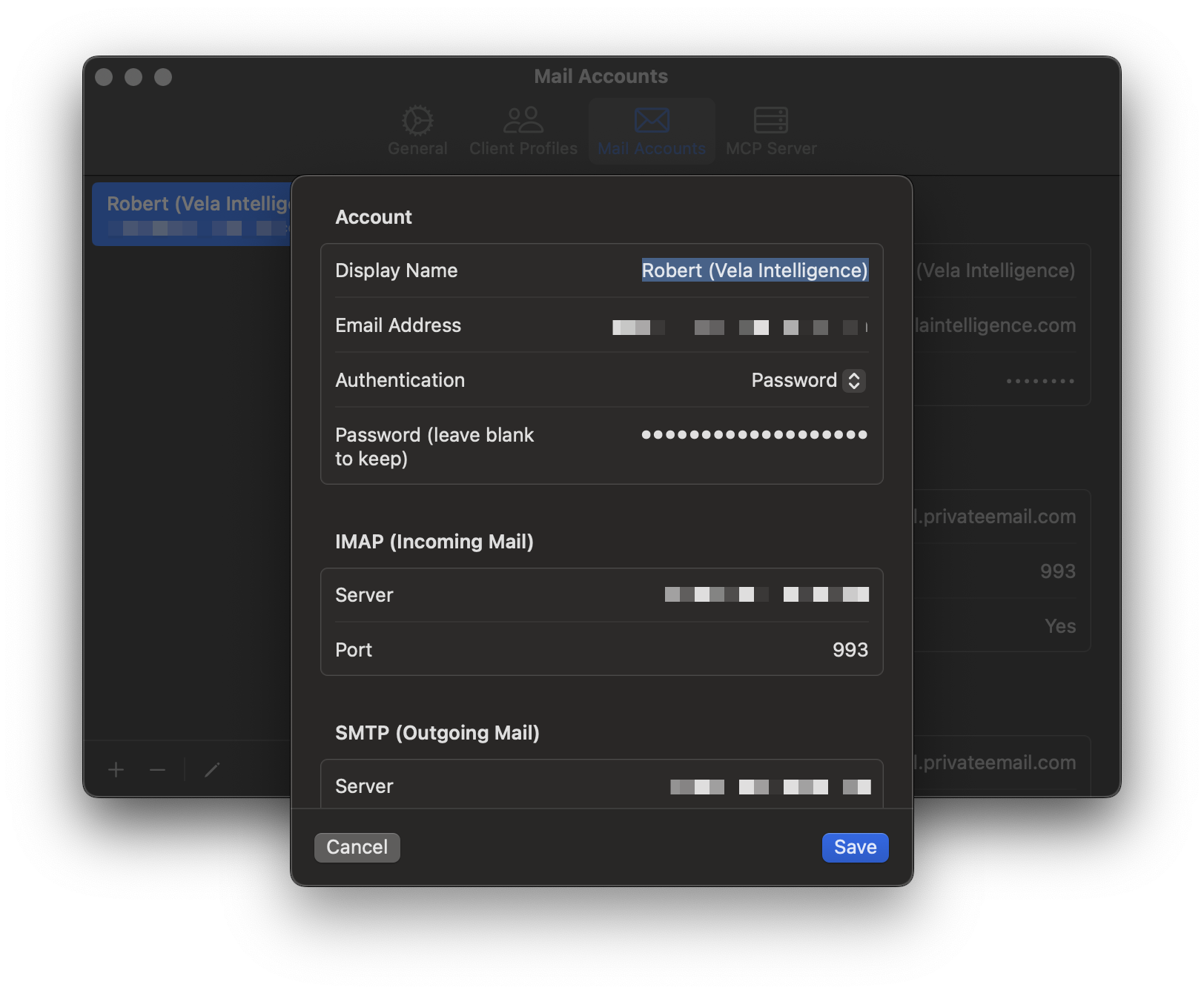
Mail Account settings

Mail Accounts

Configure multiple email accounts with full IMAP and SMTP settings. Sign in with Google OAuth for Gmail or use standard password authentication for any provider — each account is independently configurable.
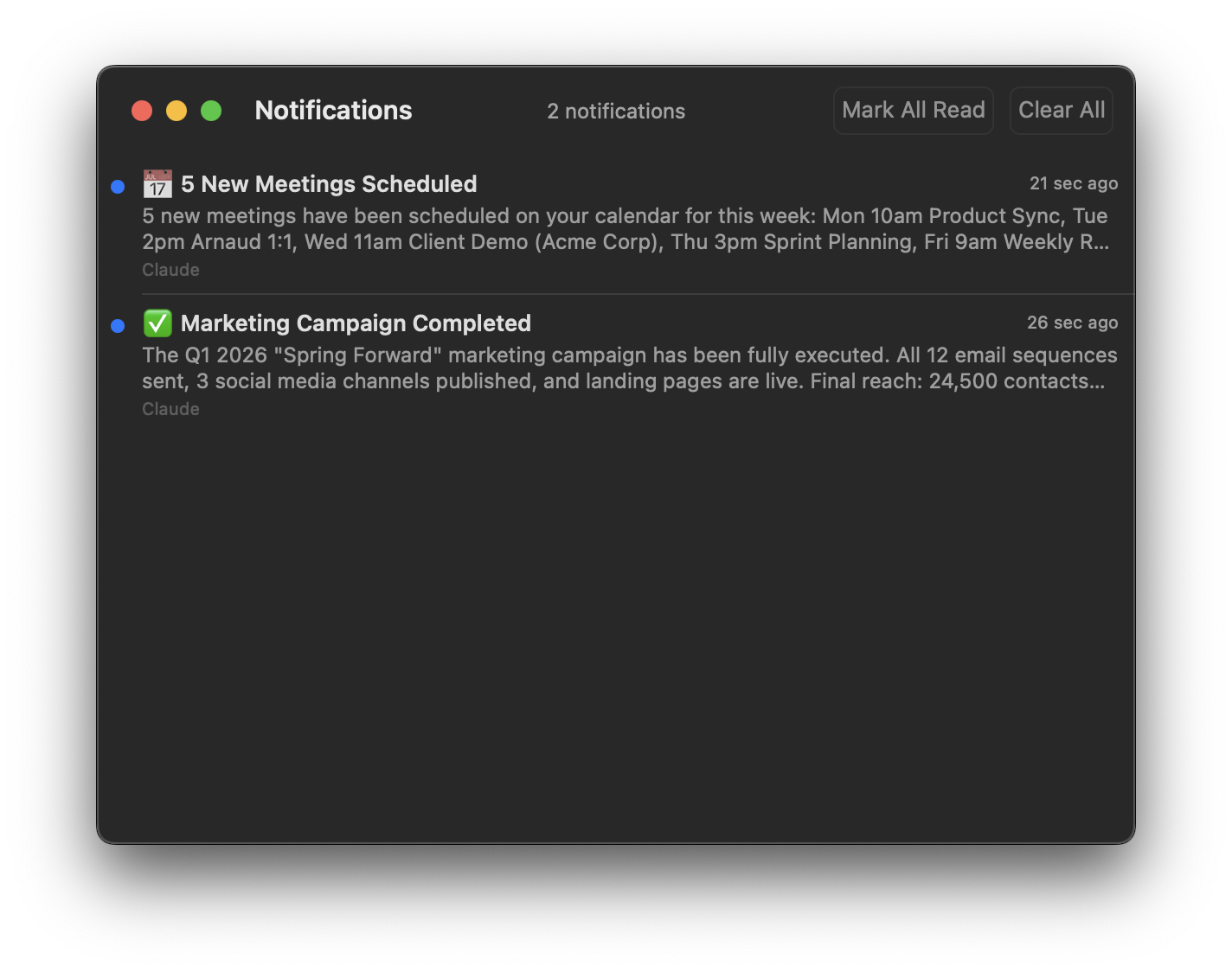
Notifications panel

Notifications

AI tools notify you about actions they've taken — scheduled meetings, sent emails, completed tasks — delivered as native macOS banners with a full history.
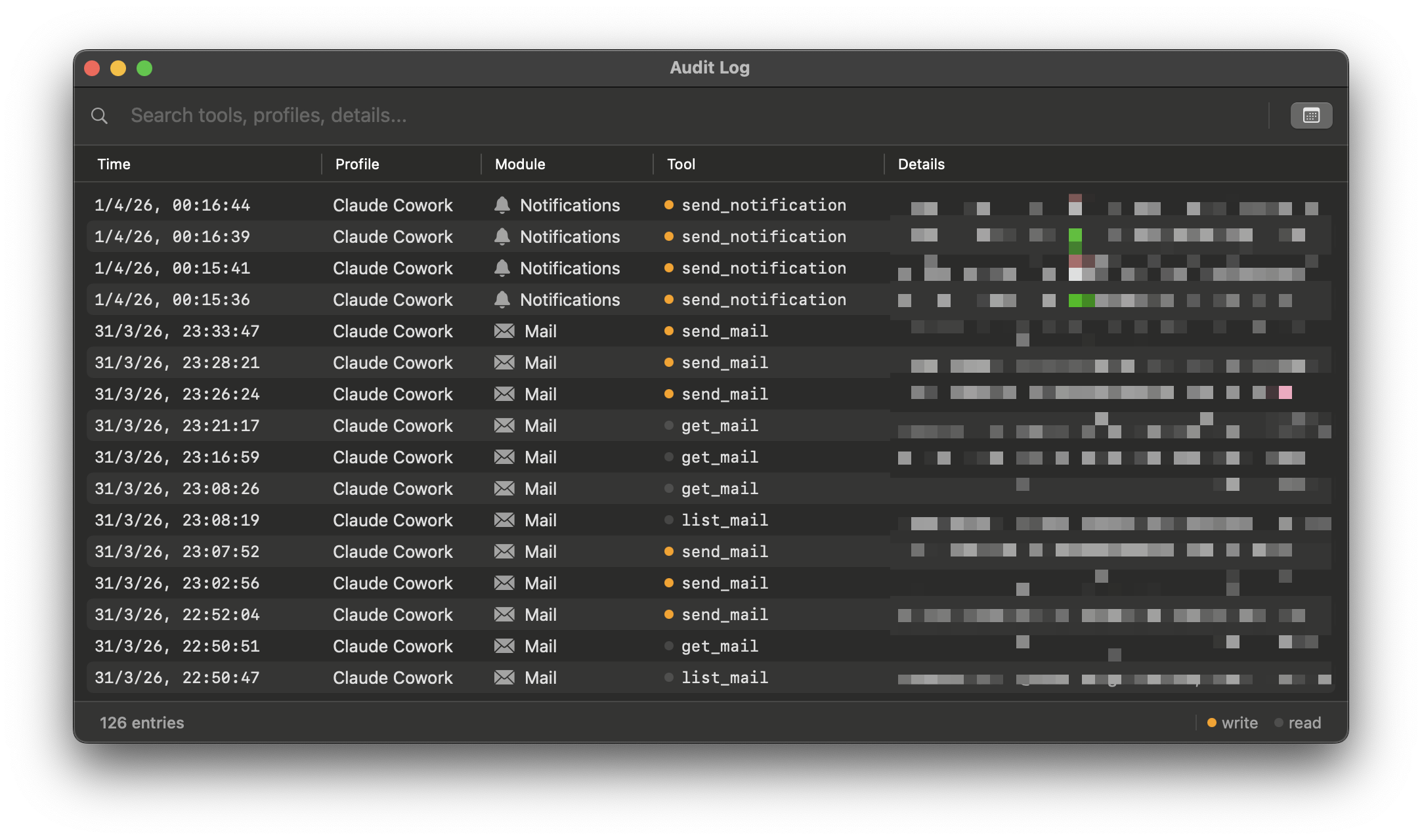
Audit Log view

Audit Log

Every tool call is recorded with timestamps, the client profile, module, and full details. Search and review everything your AI tools have done.

How it works

One app. No installer. No background daemons.

Claunnector Menubar App Profiles Monitoring MCP Server HTTP+SSE (localhost) Claude ChatGPT Codex Bridge (stdio) IMAP IDLE Monitor Claude Desktop (stdio)

Everything runs in a single process on your Mac. The MCP server binds exclusively to 127.0.0.1 — it never touches the network, so remote connections are impossible. AI clients connect over HTTP+SSE for tools like Claude Code, ChatGPT, and Codex, or via a built-in stdio bridge for Claude Desktop.

Client Profiles let you control exactly which tools each connected AI client can access. Create a profile per client, assign permissions, and Claunnector enforces them with token-based authorization — so your calendar bot doesn't need access to your email, and your coding assistant doesn't need your contacts.

Works with your favorite AI tools

Any MCP-compatible client can connect over HTTP+SSE or stdio.

Claude Desktop
Claude Code
ChatGPT
Codex
Any MCP Client

Claude Desktop connects via a built-in stdio bridge — hit the 1-click Install button in Settings and Claunnector writes the config for you. Once connected, Claude Desktop can read and send emails, check your calendar, create reminders, look up contacts, and search your notes — all through natural conversation. Ask it to draft a reply, schedule a meeting, or summarize your unread mail.

Claude Code connects over HTTP+SSE and supports both global and per-project configuration. Install globally to give every project access to your Mac's services, or drop a .mcp.json in a project root to enable it selectively. Use it to have your coding agent send status emails, create calendar events for deadlines, or look up a colleague's contact details — without leaving your terminal.

For ChatGPT, Codex, and any other MCP-compatible client, setup is as simple as pointing the client to http://127.0.0.1:5000/sse — just copy and paste the URL into your client's MCP configuration and you're connected.

Private by design

Your data never leaves your Mac.

Localhost only

The server binds to 127.0.0.1. Remote connections are impossible.

App Sandbox

Proper entitlements with minimal permissions, ready for App Store distribution.

Keychain storage

Passwords and OAuth tokens stored securely via macOS Security framework. Never in plaintext.

Single .app bundle

Drag to Applications and launch. No installer, no daemons, no background processes.

Client Profiles

Configure access per AI client at the service level (Mail, Calendar, Contacts, etc.) and at the individual resource level. Each profile gets its own bearer token for authorization.

Full Audit Log

Every request from every AI client is tracked — which profile, module, tool, and when. A searchable log you can review anytime to make sure everything is as expected.

Ready to connect your Mac to AI?

Download Claunnector and set it up in under a minute. Requires macOS 15 or later.

Download for macOS